AutoApply

AutoApply
A Chrome extension (Manifest V3) that fills job applications on any website from your profile, using Google Gemini with your own API keys. It fills; you review and submit.



Check it out! AutoApply on Chrome Web Store
Table of Contents
- App Preview
- Features
- Install
- Badge meanings
- YOLO mode
- Privacy
- Limitations
- Troubleshooting
- How It Works
- Development
- License
App Preview
Features
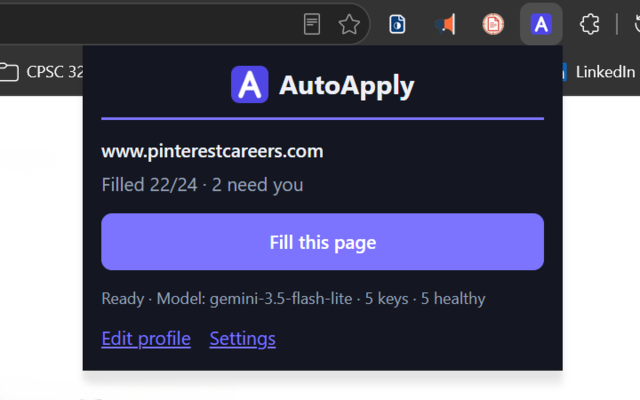
- One-click Filling: Click Fill this page or press Alt+Shift+F to fill an application on any site, including fields inside iframes and shadow DOM.
- Semantic Matching: Gemini picks dropdown, radio and checkbox options by meaning rather than exact wording, and operates custom dropdowns and typeaheads.
- AI Essay Drafts: Open-ended questions are drafted from your profile, résumé and the job description, within the question’s word/character limits.
- Saved Answers: Answer a flagged question once and AutoApply can reuse your answer on future applications.
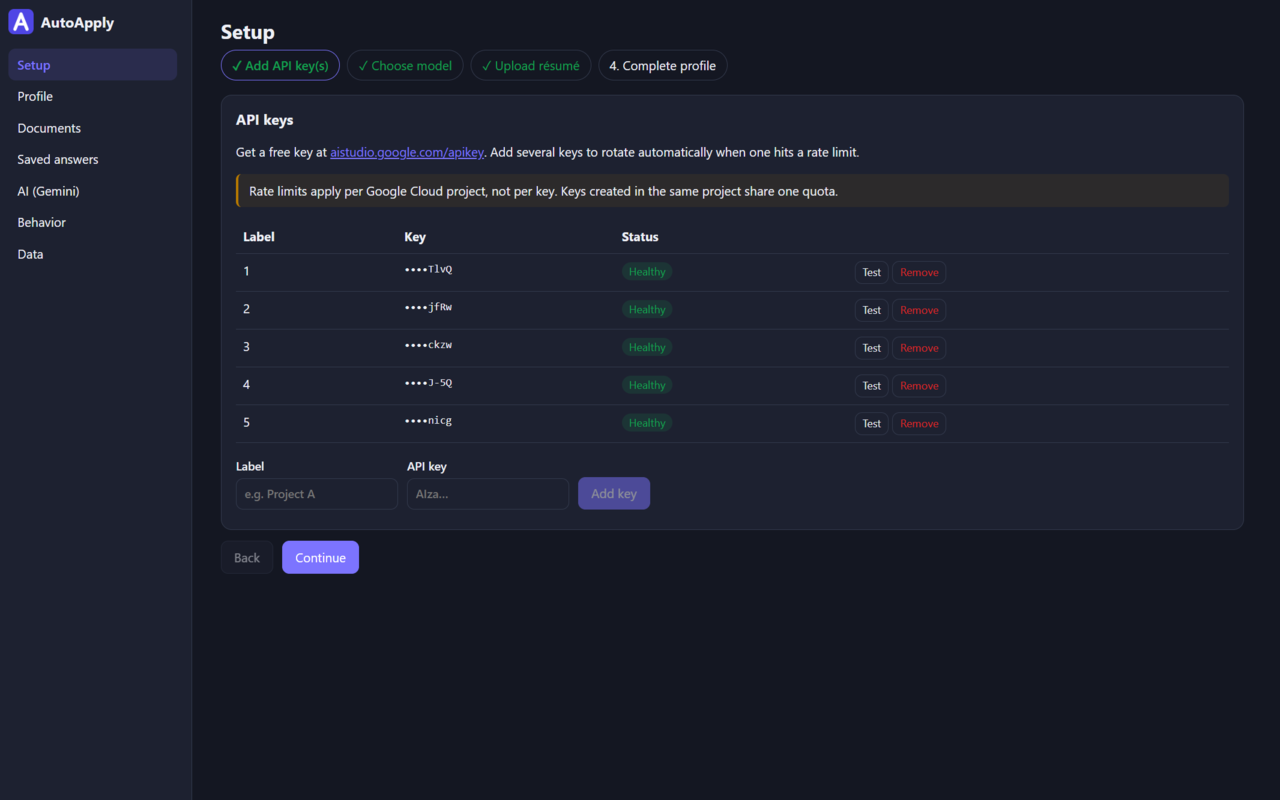
- Multi-Key Rotation: Add several Gemini API keys and set a fallback model; AutoApply switches automatically when a key hits its rate limit or quota.
Install
Requirements: Node 20+ and Chrome/Chromium 120+.
git clone https://github.com/ExxML/AutoApply.git
cd AutoApply
npm install
npm run build          # produces dist/
- Open
chrome://extensions. - Turn on Developer mode (top right).
- Click Load unpacked and choose the
dist/folder.
The settings page opens on first install at the setup wizard.
Note: Other Chromium-based browsers that support Manifest V3 should also work, but only Chrome/Chromium is tested.
Get Gemini API keys
- Go to https://aistudio.google.com/apikey and create a key.
- In AutoApply → Setup (or AI (Gemini)), paste it with a label and click Add key. The key is checked by fetching the model list; invalid keys are rejected with Google’s error message.
- Add more keys if you hit rate limits. AutoApply rotates to the next healthy key automatically when one returns a quota or rate-limit error.
Rate limits apply per Google Cloud project, not per key. Keys created in the same project share one quota. To get more capacity, create keys in separate projects. Free tier limits vary by model; see Gemini API rate limits for up-to-date quotas.
Each key row shows a status chip: Healthy, Cooling down until 14:32, Daily quota used for <model> until 00:00 PT, Invalid key, or Model unavailable on this key. Daily quotas reset at midnight Pacific time.
Choose a model
The model list is fetched live with your key and shows only text-in/text-out models that support generateContent (no embedding, image, audio, live, TTS or Gemma models), newest-added first. A Flash-Lite model is preselected because it is fast and cheap; picking a model runs a quick validation call (✓/✗). You can also set an optional fallback model, used automatically when every key is exhausted for the primary model. Click Refresh list to re-fetch (it also refreshes automatically once a day).
The newest Gemini models are often under heavy load, and rejected requests may still use up your quota. If consistency matters to you, use a slightly less popular model as your primary or fallback.
Fill in your profile
- Setup → Upload résumé (PDF): it is attached to résumé/CV upload fields automatically, and its text (extracted locally with pdf.js) is given to Gemini as context. Prefill profile from résumé proposes values for empty profile fields only; tick what to keep.
- Profile: contact details, work authorization per country, education, co-op, experience, projects, skills, preferences, background, referral, self-identification and essay guidance. Every field explains how it is used. Changes save automatically.
- Yes/No questions have Unset, and sensitive ones also Decline: Decline picks the “prefer not to say” option when the form offers it; Unset means the field is flagged for you.
- Documents: upload PDF/DOCX/TXT (≤ 5 MB) and mark one PDF as the primary résumé.
[!NOTE] Your profile, documents and saved answers are stored in your browser’s local storage. Clearing your browser data or uninstalling AutoApply deletes them, so keep a backup with Data → Export JSON (tick Include documents to back up your files too).
How filling works
- Click Fill this page in the popup or press Alt+Shift+F. AutoApply never starts on its own; it scans the page (including iframes and shadow DOM) only when you ask.
- Instant pass (no network): name, email, phone, address and links are matched from your profile; questions you answered before (saved answers) fill immediately.
- Everything else goes to Gemini in one batched call. It picks options by meaning (e.g. “willing to relocate = yes” → “I am willing to relocate”), and custom dropdowns and typeaheads are operated one at a time.
- Open-ended questions (“Why do you want to work here?”) are drafted by Gemini from your profile, résumé and the job description, respecting word/character limits, and marked as AI drafts.
- Multi-step applications: when the next step appears, click Fill this page (or press Alt+Shift+F) again. AutoApply does not watch the page between fills.
- The panel at the bottom right shows progress, the model used, and a Needs you list; click a row to jump to the field. Re-run and Stop are there too. Press Alt+Shift+W to expand or collapse it.
- When you answer a flagged field yourself, AutoApply offers to save the answer for future applications (see Saved answers in settings).
Badge meanings
| Badge | Meaning |
|---|---|
| Green ✓ | Filled from your profile or a saved answer (“You”/”Saved” once you answered it yourself) |
| Blue AI | Filled by Gemini’s semantic match (hover for the profile fields used and the chosen option) |
| Purple AI draft | AI-written essay — review it. Click the tag to save it as a reusable answer |
| Yellow Needs you | Unknown, low confidence, a consent/acknowledgement box, a sensitive field, or the AI declined. Hover for the reason and any suggestion |
| Orange Check | The page shows something different from what was entered |
| Red Failed | Could not be filled |
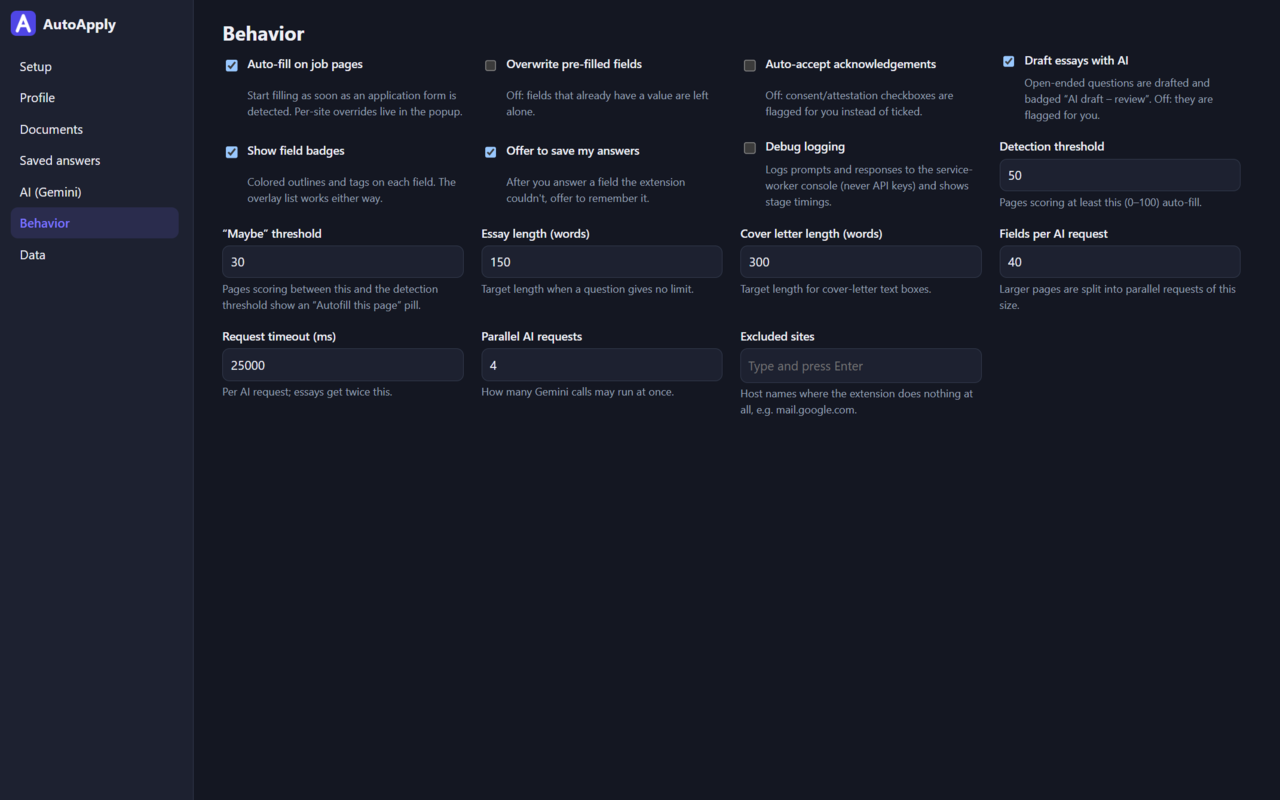
Required consent and attestation boxes (privacy notice, terms, attestations) are ticked automatically by default; turn off Auto-accept required consents in Behavior to have them flagged instead. Optional consents (contact about other jobs, talent community, marketing) are set separately: auto-decline (default), auto-accept, or flag for you.
YOLO mode
Turn on YOLO mode in the popup (set it up under Settings → YOLO mode) and AutoApply finds new postings and applies to them by itself while the browser is open. It works in a hidden page, so nothing opens on screen.
- Where it looks, every 30 minutes by default: GitHub job lists (the SimplifyJobs internship list by default), LinkedIn, Indeed and Glassdoor searches for your queries and locations, and any company career sites you add (Workday, Greenhouse, Lever, Ashby and SmartRecruiters boards through their APIs, any other career page by its links). Postings are kept when the title matches a query, the location fits, and it was posted recently. An optional Gemini check drops ones whose level or requirements rule you out. Board postings are applied to on the employer’s own site; Easy Apply isn’t supported yet.
- How it applies: it clicks Apply, signs in or creates an account (Workday needs one per company), fills every page, clicks Next until the review, and submits. Fields your profile can’t answer get Gemini’s best answer for an interview instead of being left blank. They’re badged Check and listed with the application.
- What it never does: solve CAPTCHAs, or make up ID or payment numbers. Those jobs wait under Applications as Needs you with a desktop notification; Resume opens the job in a tab and carries on once you’ve done your part.
- Accounts and email: site passwords are generated, encrypted with a key that never leaves this browser, and listed in settings. Verification codes are read from the Gmail inbox signed in to this browser. Verification links need a (free, read-only) Gmail API client ID; the settings page walks through it.
- Limits and duplicates: a daily cap (25 by default; 0 finds jobs without applying), and a log of every application, yours included. No job is applied to twice, even when found on several sites; you choose whether YOLO may re-apply to jobs you submitted yourself, and whether filling one YOLO already applied to warns you.
- Cost: nothing runs between checks. A check is a few requests (an unchanged GitHub list answers “not modified”), and applying uses one hidden page at a time, closed when the queue is empty. Gemini use is the normal fill’s plus one call per page for guesses.
Privacy
Your profile, documents and settings live only in this browser (chrome.storage.local). YOLO mode also keeps its application log and encrypted site passwords there; it reads job boards logged out, and reads verification emails only while a run waits for one. To answer questions, the extension sends your profile, résumé text, saved answers and the page’s field labels/job description to Google Gemini under your own API keys; there is no AutoApply server, analytics or telemetry. API keys stay in the extension’s background worker — web pages and content scripts never see them, they are masked after entry, and exports exclude them unless you tick Include API keys.
Limitations
- Custom calendar date pickers that refuse typed input are flagged (“Pick the date manually”).
- CAPTCHAs, passwords, payment fields and government ID numbers are never filled.
- Some sites reject synthetic events (mostly heavily customized widgets); those fields are marked Failed or Check.
- Upload dropzones inside cross-origin iframes or that only accept real OS drag-and-drop may need a manual upload (“Upload the file manually”).
- Outside YOLO mode it never submits or navigates: you always click Next/Submit yourself.
Troubleshooting
- “The model is overloaded” (503): requests are retried, then the fallback model is used if you set one (AI settings). Choosing a different primary model also helps.
- “All API keys are rate-limited … Next retry possible at …”: you hit a quota. The panel retries automatically if the reset is within 90 s. Add keys from separate Google Cloud projects, or wait for the daily reset (midnight Pacific).
- “Model unavailable on this key”: the model is not on your key’s tier/region; pick another model.
- “No API key” / “No model selected”: open the AI settings from the panel’s button.
- Nothing happens on a page: use Fill this page in the popup (or Alt+Shift+F), check that the site isn’t excluded (Behavior), and reload pages that were open before the extension was installed or updated.
- Turn on Debug logging (Behavior) to see per-stage timings in the panel and prompts/responses in the service-worker console (keys are never logged).
How It Works
User clicks "Fill this page" (or presses Alt+Shift+F)
        │
        ▼
Content script scans the page, iframes and shadow DOM for fields
        │
        ▼
Instant pass (no network): profile values and saved answers filled
        │
        ▼
Remaining fields sent in one batch → background service worker
        │   Adds profile + résumé text, calls Gemini with a healthy key
        ▼
Gemini returns a decision per field: fill / essay / consent / needs you
        │
        ├── fill  → value entered, then verified against the page
        └── essay → drafted in a follow-up Gemini call, then entered
        │
        ▼
Badges + bottom-right panel show results; user reviews and submits
Development
npm run build       # type-check + production build → dist/
npm run lint        # eslint + prettier --check
npm test            # unit tests (Vitest + happy-dom)
npm run test:e2e    # build, then end-to-end tests with the unpacked extension and a mocked Gemini
npm run test:live   # build, then a smoke test against the real Gemini API
End-to-end tests use Playwright’s bundled Chromium in its new headless mode (channel: "chromium"), which supports extensions, so no display server or xvfb is needed. Run npx playwright install chromium once. Fixture pages in test/fixtures are served on ports 5501 and 5502 (for a cross-origin iframe); test/mockGemini.ts intercepts generativelanguage.googleapis.com (including the service worker’s requests) and can simulate per-minute and daily 429s, limit: 0, 503s, invalid keys and slow responses.
Live smoke test (npm run test:live) runs semantic.html and plain.html against the real API and asserts the semantic selections (relocation, negatively phrased sponsorship, EEO decline). It is skipped unless GEMINI_API_KEY is set; GEMINI_MODEL overrides the model (default: the first Flash-Lite model in the live list).
# PowerShell
$env:GEMINI_API_KEY = "AIza..."; npm run test:live
# bash
GEMINI_API_KEY=AIza... npm run test:live
See DECISIONS.md for design choices and deviations from the specification.
License
This project is licensed under the GNU General Public License v3.0.